

What if sending a file didn’t mean asking someone to create an account first? If you need to send files using a short code, you can share the file, pass along its code, and let the recipient open it in a browser. There’s no extra app to install or account setup for them.
A short code makes the handoff easier, but it still needs to reach the right person. How do you create and share it? What should the recipient do with it? Could someone else get access? This guide covers the practical steps, plus simple ways to reduce mistakes when sharing a code.
With WMES File Send, you can transfer a file through a browser on a desktop computer, phone, or tablet. The sender shares the file and its code, and the recipient uses the code to access the file without creating an account. Here’s how to complete the handoff and choose whether a short code, email attachment, or cloud link best fits your task.
Key Takeaways
- A short code gives the recipient a way to access a shared file. It isn’t a method for storing or syncing a lasting copy.
- To send files using a short code, select the file, follow the service’s steps to create a code, and give the recipient clear instructions.
- Choose between a code, email attachment, or cloud link based on the task and how the recipient needs to use the file.
- Treat the code as an access detail. Send it only to the intended recipient, and consider a separate channel for sensitive files.
- WMES File Send works in a browser on desktop computers, phones, and tablets. Recipients don’t need an account or app.
What does it mean to send files using a short code?
A short-code file transfer lets the sender share a file and give the recipient a code to enter in a browser. The sender selects a file and shares its access code. The recipient opens the browser-based service, enters the code, and accesses the file without creating a WMES account.
Here, “short code” means an access detail for a file handoff. It isn’t necessarily the same as the short codes used for text messaging. Wikipedia’s What is a Short Code? page covers the telecommunications meaning, including SMS and MMS use. In a file transfer, the purpose is straightforward: the code helps the recipient reach the file the sender shared.
This is a way to move a file from one person or device to another. It isn’t the same as keeping a permanent copy in cloud storage or syncing a folder across devices. A file transfer answers, “How can I get this file to them?” An archive or sync service answers, “How can we keep accessing updated copies over time?”
When is a short-code file transfer useful?
A code-based handoff suits a one-off task, such as moving a document from your desktop computer to your phone or sending a file to someone else. The recipient can open the service in a browser without registering or installing an app. That keeps setup out of a simple exchange.
Think of it as a transfer, not a shared archive. Use it to get a file to someone, rather than to maintain a long-term collection or keep versions in sync. If people need continued access to organized files, choose a method designed for ongoing storage and sharing.
What does the recipient need to open the file?
The recipient needs the code and access to the browser-based service. They can use a desktop computer, phone, or tablet without installing an app. With WMES File Send, they can access the shared file without creating an account. Keep your instructions simple: open WMES, enter the code in the receiving flow, and follow the on-screen steps.
The code is an access detail, not a description of the file or a guarantee about who can see it. Share it with the intended recipient. For a smooth handoff, tell them which file to expect and where to enter the code.
In short, to send files using a short code, the sender shares a file and its code, and the recipient uses that code in a browser to access it. This keeps a one-time handoff straightforward without turning it into account setup or ongoing file storage.
How to send a file using a short code, step by step
The handoff has two parts: the sender selects a file and shares its code, then the recipient enters the code to access the file. With WMES File Send, both people use a browser. The recipient doesn’t need to create an account or install an app.
Send the code with a short, useful instruction. For example: “Open WMES in your browser, choose the receiving flow, and enter this code.” This gives the recipient a clear next step without making them figure out what to do.
Create and share the code as the sender
Start on the device that has the file. Open WMES in a browser, choose File Send, and select the file you want to share. Follow the on-screen instructions to create its code. Then send the code directly to the intended recipient with a brief note explaining how to use it.
- Step 1: Open WMES in your browser and choose File Send.
- Step 2: Select the file you want to send.
- Step 3: Follow the on-screen prompts to create the code.
- Step 4: Copy the code and share it with the recipient, along with a brief instruction.
Before sending, check that you have the right recipient and file. If the file is sensitive, consider sending the code through a separate communication channel from the one you used to discuss the file. This avoids putting the file details and its access code together in the same message.
Enter the code and retrieve the file as the recipient
On the device where you want the file, open WMES in a browser, go to the receiving flow, and enter the code the sender shared. Follow the prompts to access the file. You don’t need to create an account or install an app.
- Step 1: Open WMES in a browser on your desktop, phone, or tablet.
- Step 2: Choose the receiving flow and enter the code exactly as provided.
- Step 3: Follow the on-screen prompts to access the shared file.
If the code doesn’t work, check that you’ve entered it as sent and are using the receiving flow. Look for missing characters or extra spaces. If it still doesn’t open the file, ask the sender to confirm the code and send it again.
That’s the basic workflow: select, share, enter, retrieve. To try it yourself, try File Send with WMES.
Short code, email attachment, or cloud link: which fits?
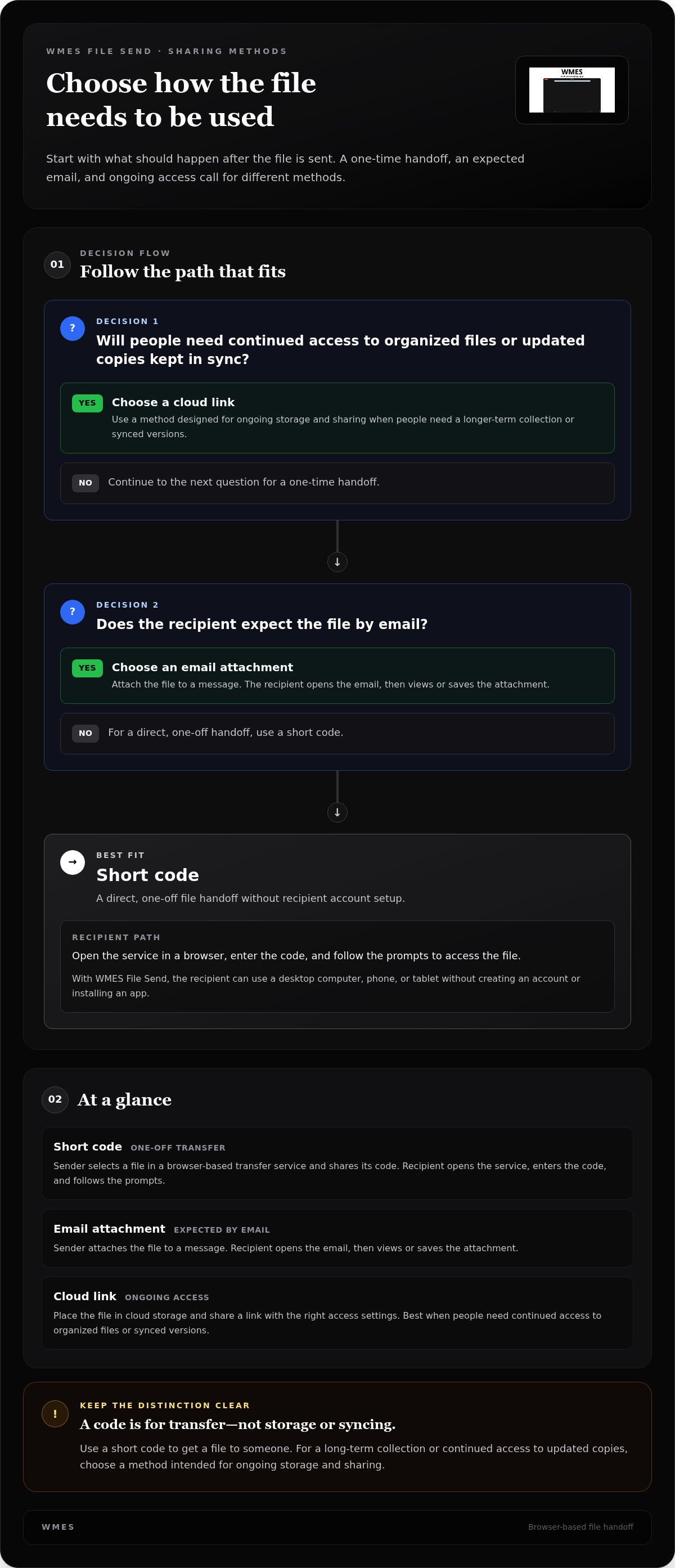
Choose a method based on what needs to happen after you send the file. A one-time handoff has different needs from an email the recipient already expects or a folder they’ll return to later. The table compares setup and recipient steps.
| Method | Setup | Recipient steps | Best fit |
|---|---|---|---|
| Short code | Choose the file in a browser-based transfer service and share its code. | Open the service, enter the code, and follow the prompts. | A direct, one-off handoff without recipient account setup. |
| Email attachment | Attach the file to a message and send it. | Open the email, then view or save the attachment. | A familiar choice when the recipient expects the file by email. |
| Cloud link | Place the file in cloud storage and share a link with the right access settings. | Open the link, then access the file. Sign-in or permission steps may apply. | Ongoing access to a file or an organized set of files. |
Each method has a different handoff. Email is familiar, but attaching the right file and having the recipient open or save it still takes a few steps. A cloud link can support continued access, though the recipient may need permission or sign-in depending on the access settings. A short code keeps the exchange focused on retrieving a shared file.
When does a short code make the transfer simpler?
A code is a practical fit when you’re sharing one file with one person and don’t want them to create an account for the handoff. It can also help when a file is on one device and needs to be accessed through a browser on another. If you send files using a short code, include the code and a clear note about where to enter it.
When should you choose a different sharing method?
Use email when the recipient expects the file there and an attachment suits the task. Choose cloud storage when people need continued access to an organized set of files, rather than a single handoff. Match the method to how the recipient will use the file.
Keep access in mind, too. A code is an access detail, so send it only to the intended recipient. For a sensitive file, consider sharing the code in a separate channel from the message that explains what you’re sending. This helps keep the file details and access code apart, but it doesn’t guarantee privacy.
Before you share the code: reduce access mistakes
A short code is an access detail, so treat it with care. Send it only to the person who should receive the file, and check the recipient before sharing the code or instructions. If you send files using a short code, remember that the code itself doesn’t prove a transfer is encrypted or guarantee privacy. Take extra care when the file is sensitive.
How should you share a code with the right person?
Send the code directly to the recipient rather than posting it publicly or in a group chat. Check the name, address, or conversation before you send it. If the file is sensitive, share the code through a separate channel from the one used to discuss the file. This keeps the file details and access code from sitting together in one message, but it isn’t a guarantee of privacy.
- Check the recipient: Confirm the person or conversation is correct.
- Keep the audience narrow: Don’t post the code or sensitive file details where others can see them.
- Give clear context: Tell the recipient what file to expect and what to do with it.
For example: “I’ve shared the project notes. Open the browser-based service and enter the code I sent separately.” Keep the message useful, but leave out sensitive details the recipient doesn’t need to retrieve or use the file.
What should you do after the recipient gets the file?
Once the recipient accesses the file, they should save it where they plan to use it. If it belongs in a project folder or needs to be available offline, they should move or save it there rather than treating the transfer as a lasting copy. A code-based handoff is for moving a file, not maintaining a shared archive or backup.
If the recipient needs the file later, have them save a copy in the right place after retrieving it. A code-based transfer is not a substitute for keeping a copy in storage they can access over time.
A code is only one part of careful file sharing. Consider what the file contains, who needs it, and how the recipient will store it after retrieval. The code doesn’t establish encryption or remove the need to handle the file with care.
Ready to make a browser-based handoff? Open WMES File Send and share the code directly with your intended recipient.
Use WMES File Send for a straightforward code-based handoff
WMES File Send is built for a straightforward exchange: select a file in your browser, share its code with the recipient, and let them access the file through the browser-based service. The recipient doesn’t need to create an account. It’s a practical fit when you want to send a file without adding account setup or an app installation to the handoff.
The workflow focuses on transferring a file. It isn’t a shared folder for organizing files over time, a sync system, or a permanent archive. If the recipient needs to keep the file, they should save it where they plan to use it after accessing it.
Why use a browser-based file handoff?
A browser workflow makes it possible to start the exchange on different devices. The sender and recipient can use desktop, phone, or tablet browsers without installing an app. For example, you can select a file on a desktop and have the recipient access it from a phone. The browser-based process keeps setup simple across these devices.
That’s useful when you need to send files using a short code and want to avoid adding recipient setup to a one-off transfer. The code gives the recipient a clear detail to use in the receiving flow, without requiring an account just to access the shared file.
What to expect from WMES File Send
The basic steps are direct. Choose File Send in WMES, select the file, and follow the on-screen instructions. Share the resulting code with the intended recipient. They open WMES in a browser, enter the code, and follow the prompts to access the file. Keep your note simple: identify the file and say what to do next.
WMES says it stores only the minimum information needed to operate. That describes its approach to information handling; it doesn’t mean the transfer is encrypted or guarantee a particular privacy outcome. Treat the code as an access detail, not a security guarantee. Share it only with the intended recipient, and consider a separate communication channel for the code if the file is sensitive.
Use File Send for a direct handoff, then have the recipient save the file if they need to keep it. WMES provides the browser-based transfer and code, while the recipient chooses where the retrieved file belongs. For continued access to an organized set of files, a handoff tool isn’t a substitute for storage or syncing.
Send a file using WMES to start a code-based handoff in your browser.
Make your next file handoff simpler
Before your next one-off transfer, decide what the recipient needs: the file, a clear instruction, and the right access detail. Checking the recipient and file before sending can prevent a message going to the wrong person or leave them unsure what to do. If they’ll need ongoing access, choose a method designed for that instead.
Once you know a short code fits the task, the steps are easy to repeat. Select the file, share the code with the intended person, and let them access it. You can send files using a short code without turning a simple handoff into a longer setup process.
WMES File Send gives you a straightforward way to put that workflow into practice. Send a file using WMES and make your next handoff simple.
Frequently Asked Questions
Can I send a ZIP file using a short code?
Use the File Send flow to select the ZIP file and follow the on-screen instructions. If the service accepts the file, continue through the prompts to create a code and share it with the recipient. If it doesn’t, choose a file format the service accepts or send the contents another way.
Is a short code enough to keep a shared file private?
No. A short code helps someone access a shared file, but the code alone doesn’t prove the transfer is encrypted or guarantee privacy. Send it directly to the intended recipient, and check the recipient before sharing. For sensitive files, avoid putting identifying details and the code in a message visible to a wider group. Treat the code as one access step, not as a complete privacy measure.
How long does a file sent with a short code stay available?
Don’t rely on a code-based transfer as a permanent place to keep a file. If the recipient needs the file later, have them retrieve it and save a copy where they can access it. The transfer isn’t a backup or a substitute for keeping a lasting copy.
Can I use a short code to move a file from my phone to my computer?
Yes. You can send files using a short code from a phone and access the shared file on a computer. Open the browser-based service on the phone to select and share the file, then use the code in the receiving flow on the computer. The browser workflow avoids app installation.
Can more than one person use the same file-sharing code?
Share the code with the people you intend to receive the file. Keep the audience limited to those recipients, and make sure each person knows which file the code opens before they use it.
What should I do if the recipient cannot open the code?
Ask them to open WMES in a browser and enter the code in the receiving flow exactly as you sent it. Check for missing characters or extra spaces, then send the code again directly. If it still doesn’t work, use File Send to share the file again and follow the on-screen steps.
