

What if sharing a file didn’t mean installing anything? You can share files without installing an app by using a browser-based service. That’s useful when you or the recipient would rather skip another app, or when you’re sending a file between different kinds of devices.
The process can be simple: select a file, get a short code, and send that code to the recipient. With WMES File Send, both people use a browser, and the recipient can access the shared file without creating an account or installing an app.
This guide explains the steps, what to check before you send, and how to pass along the access details. It also compares a browser-based transfer with cloud storage, so you can choose what fits the task. For a one-time handoff, a code-based transfer can be more direct. For files you need to organize and access over time, cloud storage may be a better fit.
Key Takeaways
- To share files without installing an app, use a browser-based transfer flow: select the file, then pass the recipient the access details.
- Desktop, phone, and tablet users can follow the same browser-first approach. Send the code through a channel you both already use.
- Before sharing, confirm that you selected the right file and identified the intended recipient.
- Send the access code directly to the recipient rather than posting it publicly.
- WMES File Send lets recipients access a shared file with a short code, without an app install or account.
Share files without installing an app: what browser-based sharing means
If you need to send a file but don’t want another app on your device, a browser can be enough. Open a file-sharing website, follow its steps, and give the recipient the details they need to access the file. Neither person needs to download a separate app for this workflow.
Both people do need an internet connection and a browser. The sender uses the browser to start the transfer, and the recipient uses one to reach the shared file. If either person can’t get online, they can’t complete those steps at that time.
What does it mean to share a file in a browser?
The browser is where the sharing takes place. You visit a website, select or access a file, and follow the instructions on screen. The recipient also opens a browser to reach the file rather than installing a dedicated file-sharing app first.
Using a website doesn’t mean installing a separate program on your phone, tablet, or computer. It is a browser-based workflow, and the exact steps depend on the service. With WMES File Send, the sender gets a short code to share, and the recipient uses it to access the file without an account.
File sharing covers different ways to make files available to other people. For a broader overview of the topic and its methods, see What is File Sharing? Here, the focus is narrower: starting and accessing a transfer through a browser, without adding an app to either person’s device.
Who benefits from a no-install file-sharing method?
A browser transfer suits everyday, one-time exchanges. You might send a classmate a project document, share photos with family, or pass a colleague a file for review. In each case, the goal is to get a particular file to someone, not set up a new app for a single task.
It can also help when the recipient prefers to keep their device as it is. They may be using a shared computer, have limited space on a phone, or simply not want more software. A browser-based option keeps the steps focused on opening the shared file, rather than finding, installing, and learning an app.
This approach is useful when you and the recipient use different kinds of devices. Each person uses a browser and an internet connection, so the recipient doesn’t need to match your setup just to access a file.
Consider what you need after the handoff. A code-based browser transfer is suited to sending or accessing a particular file. Cloud storage is generally more useful when you want to organize files in a storage space and return to them over time. If you want to share files without installing an app, first check that both people can open a browser and connect to the internet.
How to share a file without installing an app, step by step
The handoff has two parts: you prepare the file and pass along access details, then the recipient uses those details in a browser. To share files without installing an app, you don’t need a separate program on either device. You do need an internet connection, a browser, and the code the sender provides.
The complete workflow: Open a browser-based file-sharing service, select and upload your file, then send the short access code to the recipient so they can open the file in their browser.
What does the sender do before sharing?
Start with the file you want to send. Open the sharing service in a browser and follow its on-screen instructions to select and prepare the file. Before continuing, check the selected file. If several versions have similar names, confirm you chose the one you intend to share.
When the service provides a short code, copy it carefully. Send it to the intended recipient through a channel you both use, such as a direct message or email. Include a brief note saying which file the code is for and that they should open the service in a browser and use the code there.
What does the recipient need to do?
The recipient opens the service in a browser on their device, uses the code you sent, and follows the prompts to access the file. They don’t need to install an app for this workflow. With WMES File Send, the recipient also doesn’t need to create an account.
Make the handoff easy to follow. If you’re sending several messages, put the code beside a short note about the file instead of leaving it without context. If the recipient can’t find the file, first confirm they’re using the code you sent and following the service’s displayed steps.
- Sender: Open the browser service and select the intended file.
- Sender: Follow the on-screen instructions, then copy the short code provided.
- Recipient: Open the service in a browser and use the code as prompted.
- Both: Keep the code in a direct message to the person who should access the file.
That’s the basic exchange: the sender starts the transfer and shares the code, and the recipient uses it to reach the file. With WMES File Send, the recipient doesn’t need to install a separate app or make an account. Use WMES File Send to share a file with a short code.
Use browser file sharing across desktop, phone, and tablet
The browser-first approach is similar across devices: the sender selects a file, gets access details, and shares them with the recipient. The screen and file picker may look different on a computer than on a phone, but the handoff doesn’t depend on both people using the same device.
WMES File Send works in a browser on desktop computers, phones, and tablets. You can start on one device and give the short code to someone who opens the shared file on another.
| Device | What the sender does | What the recipient does |
|---|---|---|
| Desktop or laptop | Selects a file through the browser sharing flow. | Opens the service in a browser and uses the code. |
| Phone | Starts the flow in a mobile browser and selects a file. | Uses a browser to enter or follow the shared code. |
| Tablet | Opens the service in a browser and chooses a file. | Opens the service and uses the code in the browser. |
Sharing from a desktop or laptop browser
On a desktop or laptop, open the service in a browser and select the file from your device when prompted. Follow the instructions, then pass the resulting short code to the recipient. They can open the shared file on their own device, so they don’t need to use your computer or the same type of device.
Sharing from a phone or tablet browser
You can also start the process in a phone or tablet browser. Select the file when prompted. File-picker controls can differ between devices, so follow the options shown on your screen rather than expecting identical steps everywhere. The recipient uses the shared code in a browser.
Share the code through a channel you both already use. A direct message or email can keep the file details and access code together. Add a short note that identifies the file, especially if you’ve sent more than one. Send the code to the intended person rather than posting it where others can see it.
Before sending, confirm that you picked the right file and copied the code correctly. If the recipient is on a different device, tell them to open the sharing service in a browser and use the code as prompted. Their screen may show different controls, so there’s no need to describe your device’s file-picker steps.
This is a practical way to share files without installing an app across everyday devices. The browser handles the workflow, and the code gives the recipient access. Start on a desktop, phone, or tablet, then let the recipient open the file on the device they have available.
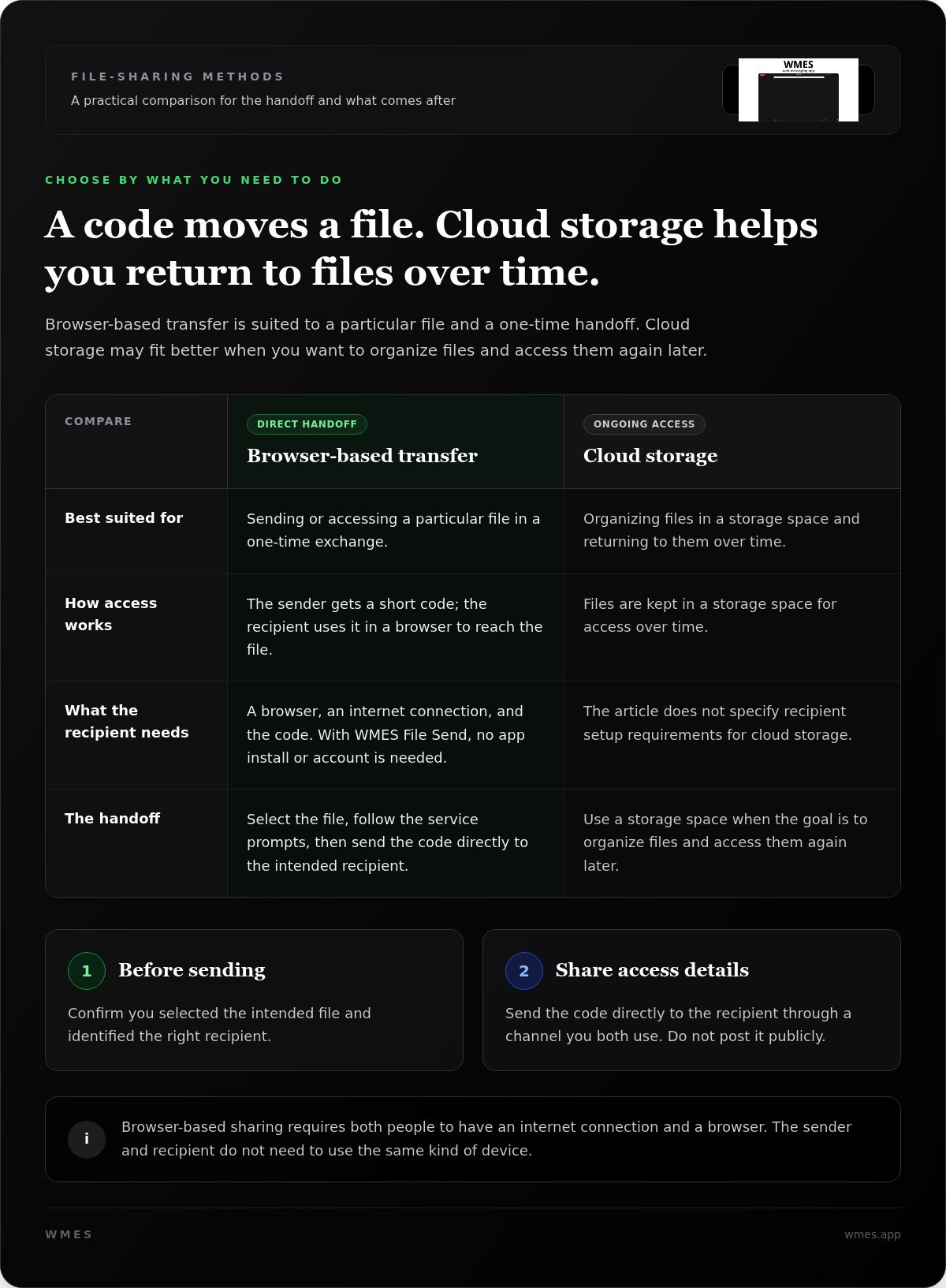
Before sharing, check file access and the recipient’s setup
A quick check before sending can prevent the wrong file or code from reaching the wrong person. Confirm what you’re sharing, who should receive it, and how you’ll send the access details. For WMES File Send, the recipient needs a browser and the correct code to access the shared file.
Check the file and recipient before sending
Pause before you share. Make sure the selected file is the version you intend to send. If several files have similar names, open or review the one you chose instead of relying on the filename alone.
- Check the file: Confirm it’s the intended document, photo, or other item.
- Check the recipient: Make sure the message is going to the person who should access the file.
- Check the note: Explain what the code is for, especially if you’re sharing more than one file.
- Check the channel: Choose a direct way to send the access details to that person.
A short message can do the job: “Here’s the code for the draft you asked for.” That gives the recipient context without making them guess which file or transfer the code belongs to. Send the code directly rather than posting it publicly, where people beyond the intended recipient may see it.
Think about where the recipient will see your message. If you’re sending the code by email, use the address you normally use for that person. If you’re messaging, choose the right conversation. Keep the file description and code together so the recipient can identify them.
What to do if the recipient cannot access the file
Start with the basics. Ask the recipient to open the service in a browser and check that they’re using the code you sent. They can follow the on-screen prompts again and re-enter the code carefully in case a typo prevented access.
If it still doesn’t work, compare the code in your sent message with the one the recipient is entering. Look for missed or swapped characters, then resend the code directly if needed. Include the file name or a short description so they know which access details to use.
With WMES File Send, the recipient uses a browser and the short code to access the shared file. They don’t need an account or an app installation. Checking the recipient, file, message, and code keeps the handoff clear without adding extra steps.
Ready to share through a browser? Send a file with WMES File Send.
Share files without an app using WMES File Send
If you need to send a file without asking the other person to install anything, WMES File Send keeps the handoff in a browser. Prepare the file, share a short code, and the recipient uses that code to access it. There’s no recipient account to create and no app to install.
File Send works in a browser on desktop computers, phones, and tablets. You can start from one device and share the code with someone using another. Both people use a browser for their part of the exchange.
How the WMES short-code handoff works
Open File Send in your browser and follow the on-screen instructions to prepare the file. The service provides a short code for sharing. Copy it, then send it directly to the person who should access the file.
The recipient opens the service in a browser and uses the code to reach the shared file. They don’t need to create an account or install an app. Identify the file in your message, especially if you’re sharing more than one.
The code is the practical handoff detail. It lets the recipient access the file without installing the same software or using the same type of device as you. Send it through a channel you already use with that person, such as a direct message or email.
Start a browser-based file transfer
To share files without installing an app, open WMES in a browser on your desktop, phone, or tablet and begin File Send. Select the file, follow the prompts, then pass the short code to the intended recipient. They can open the service in their browser and use the code to access the file.
Before sending, check that you selected the right file and copied the code accurately. Add a short note so the recipient knows what the code relates to. The handoff needs a file, a browser, and access details shared with the right person.
Try WMES File Send to start a browser-based file transfer.
Make your next file handoff simpler
When a file needs to move, choose a sharing method that fits the task. A one-time exchange doesn’t need to become a setup project. Keep the focus on the file and the person who needs it, not on changing how either device is arranged.
If you’re new to browser sharing, start with a routine file and a recipient who can try the process with you. That gives you a chance to get comfortable with the handoff before using it for a time-sensitive exchange. A clear file name and a short, direct message make the next step easier to follow.
A browser-based option gives you a practical way to share files without installing an app when the need comes up. Try WMES File Send in your browser for your next everyday file exchange.
Frequently Asked Questions
Can I share files without installing an app?
Yes. A browser-based service lets you start a file transfer from a website instead of installing a dedicated app. With WMES File Send, you can share files without installing an app on desktop computers, phones, or tablets. This can be useful for a one-off handoff, such as sending a document to someone who doesn’t want extra software on their device.
Can the recipient open a shared file without creating an account?
Yes. With WMES File Send, the recipient can use the shared short code to access the file without creating an account. For example, a colleague who needs one document for review can use the code you send rather than registering first. They’ll still need to open the service in a browser and follow its prompts.
How do I share a file using a short code?
Open File Send in a browser and follow the prompts to prepare the file. The service provides a short code, which you can send to the person who needs the file. Include a brief note explaining what the code is for. The recipient opens the service in a browser and uses the code as prompted to reach the shared file.
Can I share files from a phone browser?
Yes. WMES File Send works in a browser on phones, so you can start a transfer without installing a separate app. Select the file through the options shown on your device, then share the short code with the recipient. File selection can look different across devices, so follow the controls that appear in your browser.
Can I share files between a computer and a phone without an app?
Yes. The sender can prepare a file on a computer and pass the access code to someone using a phone, or start from a phone and share with a computer user. Each person uses a browser on their own device. The devices don’t need to match, but both people need access to the service and the recipient needs the code.
What does the recipient need to access a shared file?
The recipient needs a browser and the correct access code. They open the file-sharing service, enter or use the code as prompted, and follow the steps shown. With WMES File Send, they don’t need to create an account or install an app. If access doesn’t work, check that the code was copied accurately and that they’re using the intended service.
Do both people need to use the same type of device?
No. The sender and recipient can use different device types. One person can start the transfer on a desktop computer while the other accesses the file from a phone or tablet. WMES File Send works in a browser on desktop computers, phones, and tablets, so each person can use the device they have available.

