

A file link can remove a sign-in step, but it may also let anyone with the link open the file. If you need to share a file without recipient login, choose a method based on who needs access and how they’ll use the file. Skipping account creation makes access easier for recipients, but it doesn’t automatically make a file private.
A sign-in screen is a familiar snag. You want to send the file, not set up shared storage or guide someone through creating an account. Common options include direct transfers, link-based sharing, and short-code access. Each gives recipients a different way to reach the file.
This guide compares no-login options and explains what their links or codes mean for access. Consider file size, privacy, and whether the recipient needs a one-time copy or ongoing collaboration. WMES File Send is one straightforward option: it uses a short code, works in a browser, and lets recipients access a file without creating an account.
Key Takeaways
- To share a file without recipient login, choose a method that lets the recipient open or download it without creating an account.
- Account-free access isn’t the same as anonymous access. A link or code can still grant access to whoever has it.
- Match the method to the task: direct transfers, shared links, short codes, and collaborative document links work differently.
- Before sending, check whether recipients can view, download, edit, or reshare the file.
- WMES File Send uses a short code for browser-based access without requiring the recipient to create an account.
What does it mean to share a file without recipient login?
To share a file without recipient login means the recipient can open or get the file without first signing in or creating an account. The sender still needs a way to provide access, usually through a link, code, or sharing permission.
Removing the sign-in step doesn’t remove every form of access control. A service may let anyone with a link open the file, or it may require a code or another permission check. The rules depend on the service. Before sending, check what the recipient must do and what the access method allows.
File sharing covers a range of ways to move or access digital files. To choose a practical option, start with two questions: are you handing over a finished file, or do you need people to work on the same document?
No account, no sign-in, and no access are different things
“No account” means the recipient doesn’t have to register. “No sign-in” means they can proceed without entering account credentials. Neither phrase guarantees anonymity, and neither tells you by itself who can reach the file.
With link-based sharing, possession of the link may be enough to open or download the file. A short code can work similarly: the recipient uses it to reach the file. If someone forwards the link or code, another person may be able to use it too, depending on the service’s rules. Check whether access is limited to named people or depends only on having the shared link or code.
File transfer or shared-document collaboration?
Use a file transfer for a one-time handoff, such as sending a finished presentation for someone to review or download. The recipient gets a copy, without needing a live working document between you.
Choose a shared document when several people need to edit the same draft over time. It keeps everyone working in one place, but editing features and sign-in requirements vary by service. Some services allow editing through a link; others require an account for certain actions.
Think about what the recipient needs to do after opening the file:
- Read or download: A direct transfer or view-only link may suit a finished file.
- Edit together: A shared document may suit ongoing work if its access settings allow the required edits.
- Keep a record of changes: Check whether the document service offers version history and whether recipients can use it without signing in.
These choices are separate from whether access requires an account. A file can be easy to open but offer no collaboration tools. A shared document can support editing while still asking some recipients to sign in. Decide whether you need a handoff or ongoing collaboration first, then check the access rules for that method.
How to share a file without making the recipient sign in
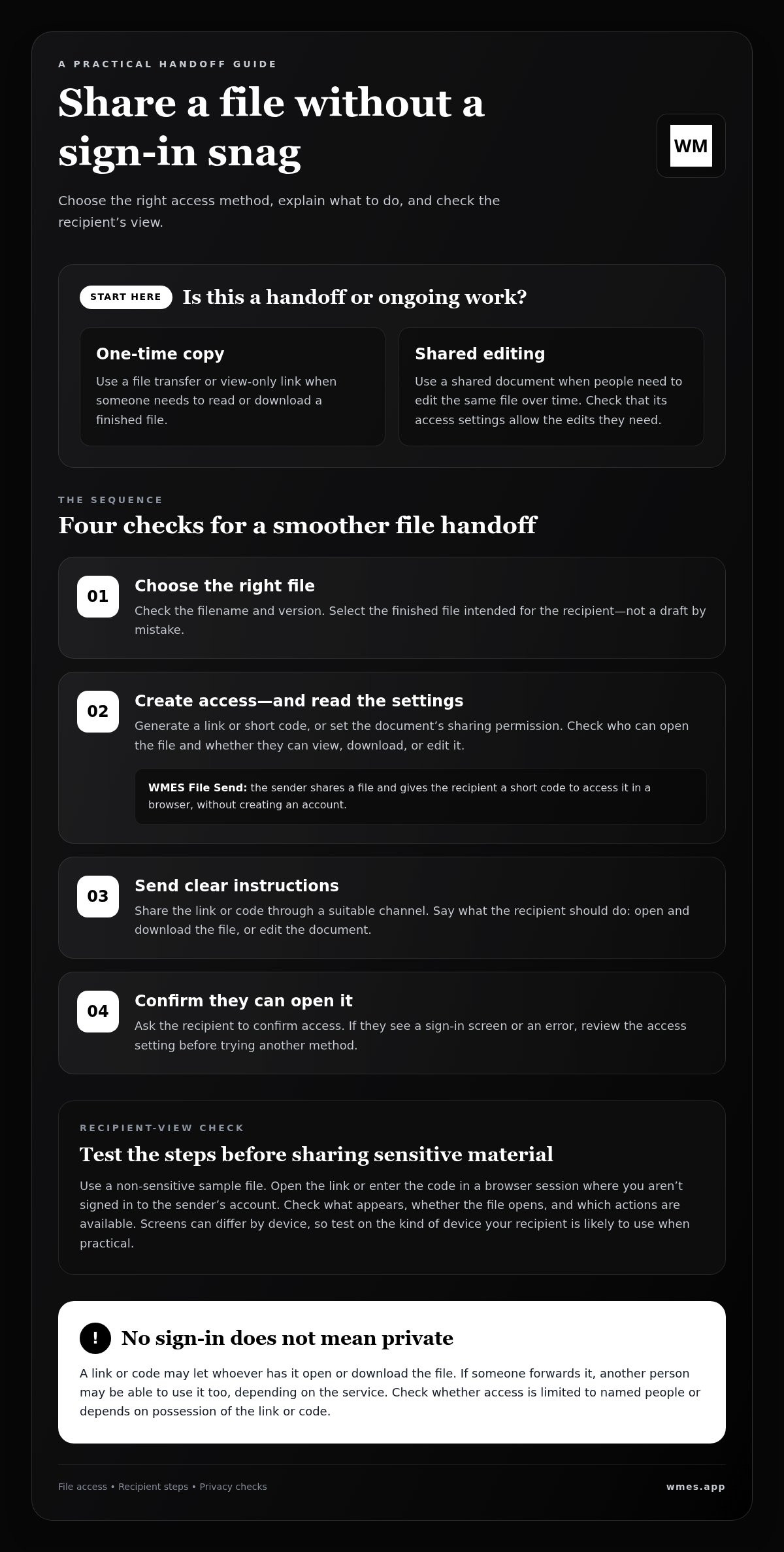
A smooth handoff takes a few checks. Choose the right file, set up a recipient-friendly way to access it, explain what to do, and confirm it arrived. The exact steps vary by service, but access usually comes through a link, a short code, or a sharing permission.
Prepare the file and select a sharing method
Start by confirming the file and the recipient. Check the filename and version so you don’t send a draft by mistake. Then match the method to the task: use a transfer when someone needs a copy, or a collaborative document when people need to edit the same file.
Follow this sequence:
- Choose the file. Select the finished version and make sure it’s the one the intended recipient should receive.
- Create access. Use the service’s sharing option to generate a link or short code, or set the document’s access permission. Read the access prompt before confirming. Check who can open the file and whether they can view, download, or edit it.
- Send clear instructions. Share the link or code through a suitable channel. Say what the recipient should do, such as open and download the file or edit the document.
- Confirm receipt. Ask the recipient to confirm they can open the file. If they see a sign-in screen or an error, review the access setting before trying another method.
A code-based transfer follows the same basic pattern. With WMES File Send, the sender shares a file and gives the recipient a short code to access it in a browser. The short-code file-sharing workflow walks through the process.
Send clear instructions and check the recipient view
Make your message specific. “Here’s the file to download” sets a different expectation from “Please edit this draft.” If the recipient needs to sign in, request access, or install something, they may not be able to complete the handoff as planned.
Before sending sensitive material, test the recipient-facing steps with a non-sensitive sample file. Open the link or enter the code in a browser session where you aren’t signed in to the sender’s account. Check what appears, whether the file opens, and which actions are available. Screens can differ by device, so test on the kind of device your recipient is likely to use when practical.
If the test reveals unexpected access, stop and adjust the sharing settings. For a browser-based handoff, WMES File Send uses a short code and doesn’t require recipients to create an account.
Compare no-login file links, codes, and shared-document access
The best way to share a file without recipient login depends on what the recipient needs to do. A one-time download and a document people keep editing call for different access methods. This table compares recipient steps, common uses, and trade-offs.
| Method | Recipient steps | Best fit | Access trade-off |
|---|---|---|---|
| Direct file transfer | Open the transfer and download the file. | Sending a finished copy. | Simple handoff, but usually not a shared workspace for ongoing edits. |
| Shareable link | Open the link, then view or download if allowed. | Sharing a file or stored item by address. | Anyone who can use the link may be able to reach it, depending on the service’s settings. |
| Short-code access | Open the service and enter the code, or follow the service’s instructions. | Passing access details without sending a long address. | The code is another way to reach the file. Don’t assume it expires or limits access unless the service says so. |
| Collaborative document link | Open the document and view or edit, if permitted. | Working on the same live document. | Editing permissions and available features vary. Some actions may still require an account. |
When a direct transfer or short code fits
Use a direct transfer when the recipient needs a copy, not an ongoing workspace. For example, if you’re sending a finished PDF to read, a download is usually more fitting than inviting someone into a document they won’t edit. A short code can be easier to share aloud or in a brief message than a long web address. It still provides a route to the file, so treat it as access information. The code’s length alone doesn’t tell you what controls the service applies.
WMES File Send uses a short code for browser-based access without requiring the recipient to create an account. The code is the access method. Don’t assume it has a particular expiry or permission setting unless the service states that detail.
When a shared-document link fits
Choose a collaboration link when people need to review or edit the same working file. Microsoft guidance describes guest editing through a link for some web-based documents. That can let recipients collaborate without signing in for basic tasks, but some features may still require a Microsoft account. The link owner’s sharing settings and the document service determine what guests can do.
In short, the simplest method depends on whether recipients need a copy or collaboration. For a finished file, prioritize a clear route to open or download it. For group edits, check the link’s permissions and which features guests can use. Don’t treat “no sign-in” as proof that every recipient has the same access.
Check access and privacy before sharing without a login
No-login access saves recipients a step, but it doesn’t tell you who else can open the file. With a link or code, access may depend on who has that information. If it’s forwarded, someone beyond your intended recipient may be able to use it, depending on the service’s settings.
Before sharing, check what the access method lets people do. Someone who only needs to read a finished file doesn’t need editing permission. For a working document, editing may be useful, but it also lets recipients change the contents. Choose the least access that still lets them complete the task.
Match access permissions to the file
Use view or download access for a finished file when changes aren’t needed. Grant editing access only to people who need to update the document. For sensitive material, use a method that can identify or restrict access to intended recipients. A public-style link or shared code may not provide that level of control.
Review the service’s sharing options before sending. Check who can open the file, whether recipients can download or edit it, and whether they can pass access on. Don’t assume that a sign-in-free link verifies someone’s identity. The details vary by service.
Review what happens after sharing
Access doesn’t end when you send the link. Find out whether you can revoke it or change its permissions later. Also consider what happens after someone downloads a copy: they may be able to save or forward it outside the original sharing setup. Changing or removing the original access may not retrieve a copy that’s already been saved.
Use this quick check before you send:
- Audience: Does the access method limit the file to the intended recipient, or can anyone with the link or code open it?
- Actions: Can recipients view, download, edit, or reshare the file? Are those actions necessary?
- Ongoing access: Can you change or revoke access if the wrong person receives the link?
- Sensitivity: Does this method meet the privacy and handling requirements for this particular file?
If you can’t answer those questions, pause before sharing sensitive material. Use sign-in or named-recipient controls when access must be tied to a particular person. If the available method doesn’t meet the file’s requirements, don’t send it that way. Avoid assuming a service uses encryption, deletes files on a set schedule, or guarantees confidentiality unless its own documentation clearly supports that claim.
For a simple handoff where recipients need account-free access, use WMES File Send to share a file through a short code. Choose this kind of route when it fits the file and the access you need.
Use WMES File Send when recipients need simple, account-free access
WMES File Send is a practical option when someone needs to receive a file without creating an account. It uses a short code for access, so the handoff doesn’t depend on the recipient signing in to shared storage or installing an app. The service works in a browser on desktop computers, phones, and tablets.
What the sender and recipient do
The flow is direct: the sender chooses and shares a file, then gives the recipient its short code. The recipient uses the code to access the file in a browser without creating an account. No app installation is required, keeping the basic steps familiar across common devices.
Before sending, make sure you’ve selected the right version and know who should receive the code. Send it with a short note explaining what the file is and what the recipient should do. For example, tell them to open the file and download a copy if that’s the goal. The code is the way into the file, so share it with the intended recipient rather than posting it publicly.
Need help deciding whether a short-code transfer or another method fits the task? This guide to sending files without an account compares common approaches. Match the method to the job rather than setting up a shared workspace when all you need is a handoff.
Choose the next step based on the job
A short-code transfer suits a straightforward exchange: send a finished file, let the recipient access it, and move on. It’s different from a live document used for continued review. If several people need to make changes in one place, choose a collaboration tool with editing features that fit the work. A file transfer isn’t a substitute for shared editing or version history.
As with any account-free method, consider the file and the access you need before sharing. The recipient doesn’t need an account, but the code still grants a route to the file. Don’t assume specific expiry, retention, encryption, or permission controls unless the service states them. Use a method suited to the material and your sharing requirements.
If a simple, browser-based handoff fits, try WMES File Send. Share the file, pass along its short code, and let the recipient access it from a desktop, phone, or tablet browser. It provides no-login access for a one-time transfer, while ongoing edits call for collaboration tools.
Make your next file handoff easier
Build one small habit into your workflow: decide what the recipient should be able to do before sending, then choose access that fits. That can help prevent sign-in prompts, permission requests, and follow-up messages. For work that needs shared editing, use a collaboration setup instead.
If you want a direct way to share a file without recipient login, WMES File Send gives recipients access without an account. It runs in a browser on desktop computers, phones, and tablets, with no installation step to add to the handoff.
Try the short-code flow with a file that’s suitable for sharing. Send the code with a clear note about what to do next. Try WMES File Send for your next account-free file transfer.
Frequently Asked Questions
Can I share a file without the recipient creating an account?
Yes. Some file-sharing services let recipients open a link or enter a code without signing up. The recipient may still need a browser or compatible app to use the file. Account-free access doesn’t necessarily limit access to one named person. If the link or code is forwarded, someone else may be able to open it, depending on the service’s settings.
Is sharing a file without login safe?
It can work for routine transfers, but safety depends on the file and how access is set up. A recipient might forward the link or save and reshare a downloaded copy. Check whether the method allows viewing, downloading, or editing. For a confidential contract or private record, use identity-based access tied to the intended recipient. A missing sign-in screen alone doesn’t prove the file is private.
How do I send a file to someone who does not have an account?
Choose a service that supports recipient access without signup, select the file, and create the required link or code. Send it with a short note explaining what the file is and whether to view or download it. Before sharing sensitive material, test the recipient steps with a non-sensitive file. Services differ, so don’t assume every link or code opens the same way.
Can someone edit a file without signing in?
Sometimes. Microsoft says recipients can edit certain Word, Excel, PowerPoint, or OneNote web documents through a shared link without signing in, though some features may still require a Microsoft account. Other services set their own rules. Editing a live online document is different from downloading a file and changing a separate copy, which won’t automatically update the original.
What happens if I share a file link with the wrong person?
They may be able to open it if the link grants access and doesn’t verify who they are. If the service allows it, revoke the link or change its permissions promptly. That may stop future access through the original link, but it can’t necessarily remove a copy already downloaded. For files that must reach only a specific person, set recipient-specific access before sharing.
Can I share a ZIP file without the recipient logging in?
Yes, if the sharing service accepts ZIP files and lets recipients access them without an account. The recipient also needs a device or tool that can download and extract the archive. For example, a ZIP containing project documents may arrive successfully but still need an archive utility to open. Check the service’s file-type and size rules before uploading.
Do recipients need to install an app to open a shared file?
Not always. Some services let recipients open a sharing page in a browser without installing a separate app. But accessing the shared file and using its contents are different steps. A browser may download a spreadsheet, for example, while editing it could require a compatible program or online editor. Check the file format and recipient’s device before sending.


